First off, my new position is going really well. I am re-organizing the Auvik KB, helping with creating new videos, creating new KB articles externally, assisting review of internal documentation and helping Tier 1 folk learn more about technical writing.
Needless to say, I am killing the expectations for my position very early on.
Now I am big about learning things – so I am building my own Auvik supported network in my house.
And I thought I would share my journey doing that.
So first thing first is getting Auvik supported network equipment.
What you need to know about that is that it can’t be just consumer level equipment. A bog standard (consumer) Linksys or Netgear router or switch isn’t going to do the trick.
It has to be business or professional level equipment. Now that doesn’t mean expensive.
I have figured out I don’t like TP-Link products (especially the TP-Link Omada line.) Basically the access point I bought that was one of these Omada varients I could not get to link up with my Ubiquiti ER-X router I bought.
The ER-X will definitely work with Auvik but there was no way to get the Omada access point to work with the ER-X.
So setting up my network is delayed until I can pick up a Ubiquiti access point.
As well I have set up a Ubuntu Linux box as a server to be the Auvik collector.
I have long said I am a jack of all trades – so I am by no means a networking expert so I thought it would be cool to show how you don’t need to be an expert to use Auvik (but you could be).
See you in a week or so (when I get my new access point).
Here I am on week 6 of my new position with Auvik Networks and I am loving it.
I’ve cleaned up all the documents that needed updating in our knowledge board and now I’m onto writing brand new documentation. The team is phenomenal. I work closely with my Tier II colleagues, as well as our Customer Education & Training Program Manager. My manager; who is our Customer Escalations Manager, is serious about making sure I have everything I need.
It is so refreshing to work for a company where documentation is not the last thing they focus on. Sadly, I have worked with some companies where it was the last thing and often times the money earmarked for documentation was re-routed into other parts of a project..
Positive feedback is a way of life here – I enjoy making sure those who help me get a nod for their contribution. Seriously, Auvik feels like someone took all the best bits of previous jobs I have enjoyed and then rolled in writing and made me the perfect job.
Add in the fact that I am a 100% remote worker and I don’t think this could get better
It’s been a while since I got to meet the folk I’ll be working with in such a relaxed and welcoming way. I got introduced to so many folk, got to check out various systems and generally get comfortable with it all.
The folks I am working with are great. It honestly feels like a family. I haven’t felt that way since TELUS and Enbridge.
I can tell I have been contracting too long though. This slow ramp up to actually doing work feels wrong some how. I feel myself anxious to start writing. Amanda, my boss, says we’ll get me doing some writing this coming week.
I’m anxious to prove my worth.
Other than that, I’ve been taking training from their internal systems and this weekend I’ll set up my office.
Oh and flexing my Mac knowledge, to fix a mistake I made setting my MacBook up.
I’ve had to keep my mouth shut as I handle setting up the transition from my position as a contract BA, but now is the right time for letting everyone know my amazing news.
As of March 1, I will transition into my new role as a Technical Writer with Auvik Networks.
I really appreciated Karen, Jesse and Rich with Tri-Global and the Government of Alberta for bringing me on to my role with them but this is my dream job.
Looking forward to joining my new team with Amanda, Guilherme, Dan, Sally, Pam and Rebecca as well as everyone else I am going to meet soon.
So am I a Business Analyst, a Technical Business Analyst or a Technical Writer?
My goal is to be a Technical Writer. As I think I mentioned, the project manager I am working with has acknowledged my writing ability and as such leans on me to polish the presentations we are making.
They hired me as a straight business analyst. So I am creating questions in order to develop process maps for the government area that has hired me.
Interestingly a huge amount of technical writing is process mapping. It was a large part of what I did at Enbridge, sit down with the SCADA programmers, record what they did; I generally video the chat as the SCADA programmer displayed the steps and I asked the questions that displaying the process didn’t catch. Then I write the process document – effectively a very detailed ‘how to’, send it back to the SCADA Programmer, who would read it through and leave comments. I’d make changes, get one of the other technical writers to read it over. Then it would go to the SCADA Manager and he would read and approve it.
Rinse. Repeat.
You know what the difference is in being a business analyst and a technical writer – the type of document and the amount of detail being written. I prefer being a technical writer. I like to get into the meat of things. But the interviewing, the documentation of processes – same skills, different use.
Oddly, this reminds me of the argument I often had with my SCADA programming friends. They would say “It’s a SCADA system.” I would say “It’s a database being used for a different purpose.” The back end, it was good old MSSQL (now Azure). It’s why understanding what I was writing was easy for me. I’d programmed with it for years.
At Enbridge, I set up a JIRA/Confluence site to manage documentation. At this position, I will be using SharePoint (I just volunteered to take this on). I used SharePoint at Enbridge as well, but I didn’t need to manage it there. I set up an entire reporting request engine on SharePoint for TELUS. (A lot of places would hire a Technical Business Analyst for this job – because I can actually administer it and do some programming with both JIRA/Confluence and SharePoint.)
I was told that no one hires a generalist any longer. If I want to be a Technical Writer, everything has to convince people I am a Technical Writer.
Maybe it’s the same as the old ‘SCADA vs. database used for a different purpose’ argument.
Is this a classic case of a square peg not fitting in a round hole?
Thankfully I am in a contract but I just heard back from another position that more fits my goals.
“We thank you for your interest, but the hiring manager has decided to move ahead with other candidate that she feels is a better fit for her team.”
I’ve heard that more often than I want to accept.
I wrote the Google Maps document for them as a demonstration. What is wrong with it? I’m really asking because to me, it fits the bill. What did I miss? Should I not to have included screen captures? Did I include too much detail? Not enough?
It’s frustrating because I don’t know what to change.
For now it’s another bit of demonstration that I can write. I did this document in around 3 hours.
To anyone familiar with Google Suite, they will be familiar with the simplicity of using the system. Google Maps builds on to this, to allow users to easily find locations in their city or locations worldwide. As long as the user has a personal computer and is familiar with using it, they can use Google Maps.
Opening Google Maps
On a browser, go to http://maps.google.com. There may be some variations of how it will appear, depending on the browser application used. For this instruction Google Chrome is being used.
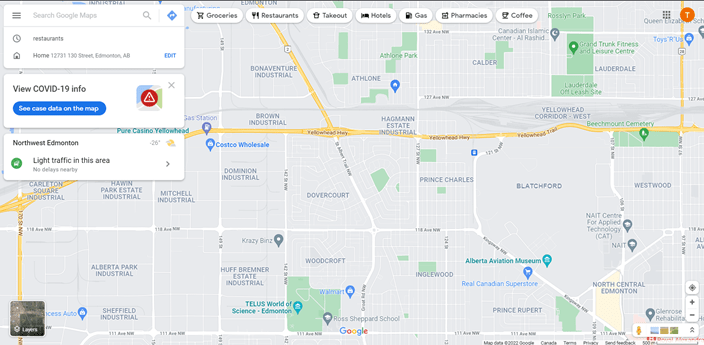
It will display a map near your current location. If there is a Home address set near the current location, it will be displayed on the map as a Pinned Location.
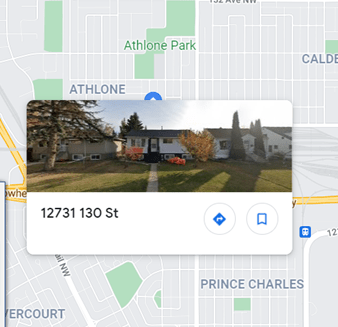
Mousing over the Home pin will display a photo of the location.
Mousing over various pinned locations will have information from the location popup. This will include pictures, business names, addresses and hours.
Types of pins include Shopping, Groceries, Museums, Schools, Gaming, Golfing and others as well as generic pins.
Google Map Features
Menu
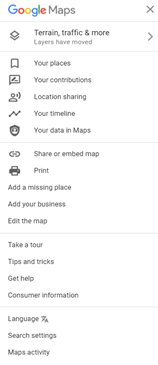
If you click the Menu icon (three straight lines), the menu will open at the side.
Terrain, traffic & more will close the menu and show the map.
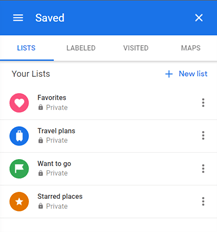
Your Places will show a menu of locations that have been Saved.
Lists will show locations you have added as Favorites, Travel Plans, Want to Go, or Starred Places locations.
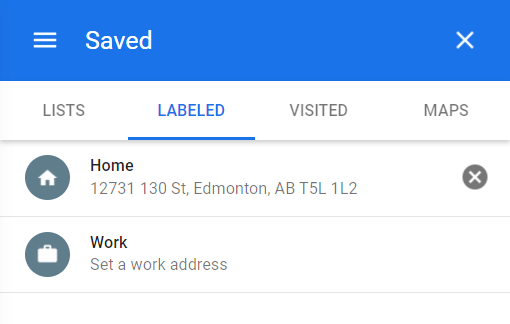
Labeled will show addresses that has been set as Home, Work or others.
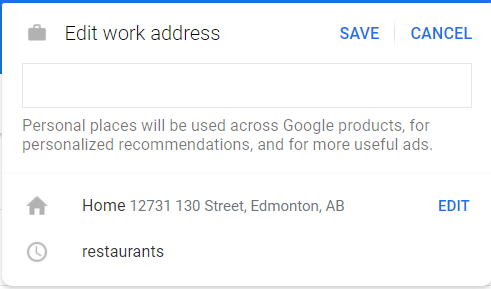
To set a Labeled address, click on the label an Edit window will open. Enter the address and click save to add it as a Labeled address.
To change a Labeled address , click on Edit. The Edit window will open.
Visited will show addresses that you have visited recently.
Maps will show a list of locations that a map has been generated for. A Map is generated when you use the From and To function of Google Maps, to find Directions.
Your Contributions will display contributions the user has made as feedback on Businesses and Locations through Google.
Location Sharing is used mostly by the Google Maps mobile application and will share your location with friends and family. Clicking Manage Location will allow the user to control if their location is shared or not.
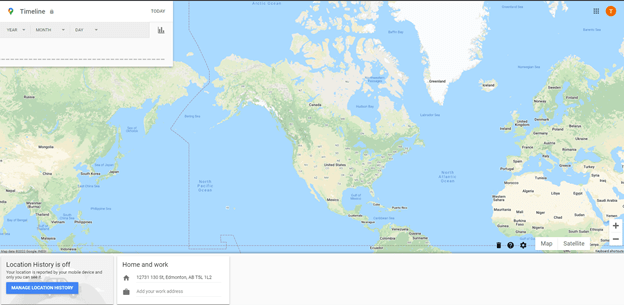
Your Timeline will display locations that have been visited over a specific timeline. Clicking this will open a new browser tab. Location History must be On to track your history. If it is not on, no History will be recorded. The data saved in the users account helps give them a more personalized experience across all Google services.
Your Data on Maps will open a new browser tab that will show items such as the set Home and Work addresses as well as any reviews the user has made for specific businesses. Google wide controls like Location History and Web & App Activity can be toggled On and Off or viewed from this location.
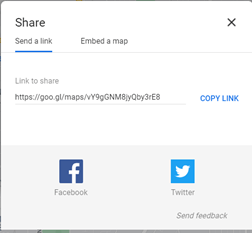
Share or embed map opens a pop up.
Share a link allows you to post an address on Facebook or Twitter.
Embed a map provides HTML code to post a map on a website.
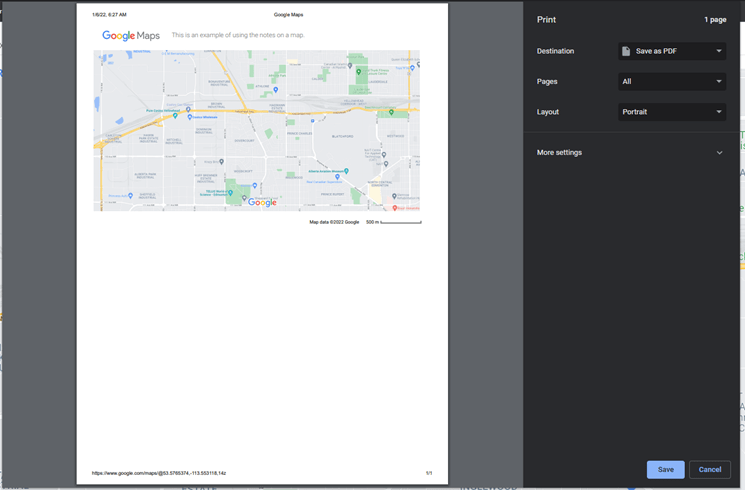
Print switches the browser tab to allow it to print easily. It includes a place to add notes. Click the Print button will open a Print window.
Add a missing place allows users to submit new locations to Google.
Add your business allows users to create a Business Profile on Google.
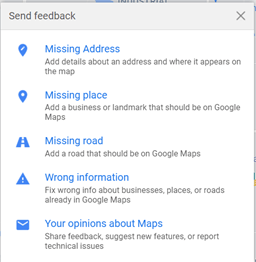
Edit the map opens a pop up to allow a user to report a Missing Address, Missing Place, Missing Road, Wrong Information or Your Opinions about Maps to Google.
Take a Tour starts the Google Maps tour to explain how maps work.
Tricks and Tips opens a Help Menu.
Get help opens a Help Search.
Consumer Information opens a Google Maps Consumer Information pop up.
Language opens a Select Language pop up.
Search Settings opens a window to allow a user to adjust their Google Search Settings.
Maps Activity opens a window to allow a user to adjust their Maps Activity in Google My Activity.
Categories
A set of Category buttons is at the center of the screen.
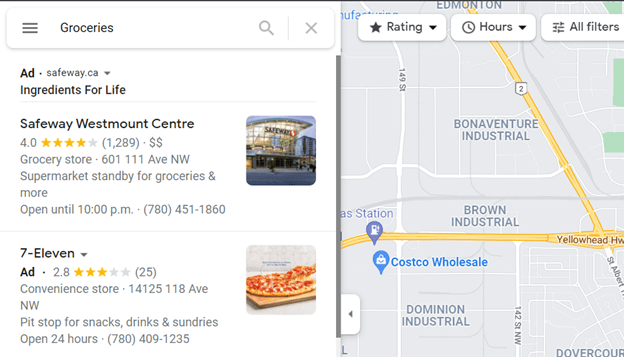
Categories include Groceries, Restaurants, Takeout, Hotels, Gas, Pharmacies and Coffee.
Clicking each Category will open a list of businesses or places in that category for the location you are in.
The list can be filtered by Rating, Hours and other filters by clicking the buttons next to the list of businesses.
COVID-19 Information
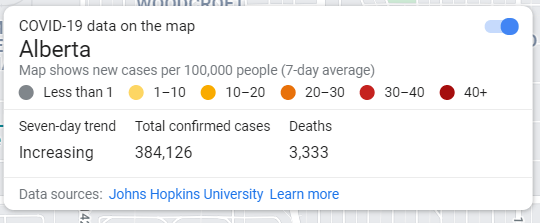
A new function on Google Maps is displaying case data on the map.
Click on the See case data button will open a new menu on the map.
This can be toggled off with the blue button at the top of the COVID menu.
Layers Button
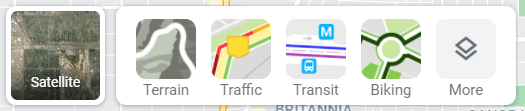
Mouse over the Layers button at the bottom left of the screen.
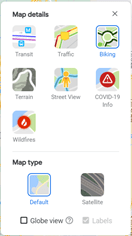
Satellite, Terrain, Traffic, Transit, Biking and More will popup.
Clicking each of these will change the appearance of the map.
Satellite changes the appears to a satellite image of the map. The button will then be changed to Map. Use this button to toggle between Satellite and Map.
Terrain adds terrain shading to indicate topography and elevation.
Traffic adds colored live traffic.
Transit highlights transit stations on the map.
Biking highlights biking paths on the map.
More expands the map features and allows a user to toggle between features.
Additional Functions
This button centers your map based on your current location.
The plus / minus buttons changes the scale of the map.
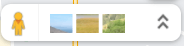
The yellow man button shows which streets / areas have satellite mapping.
The picture squares open a Explore photo menu.
The two upper arrows indicates that the Explore menu is closed. When the Explore menu is open, the direction of the arrows change to downward.
Search with Google Maps
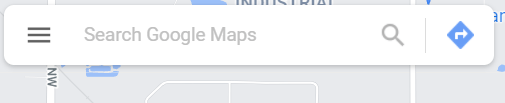
At the top left of the browser menu, there is a search window.
This functions in the typical way that most search engines do, but instead of websites being found, Google Maps will locate businesses, locations in the user’s cities or other cities. Either a type of business or location can be entered, such as a groceries store or bank, or the specific name of the business.
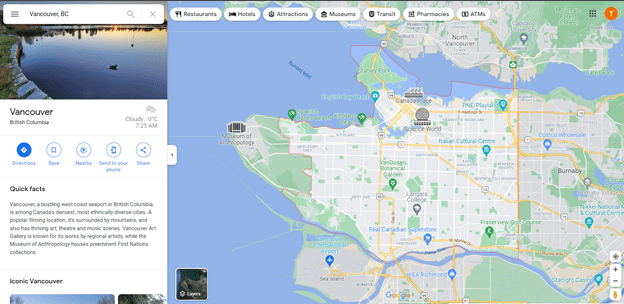
To find a different city, the user enters the city name. IE: Vancouver.
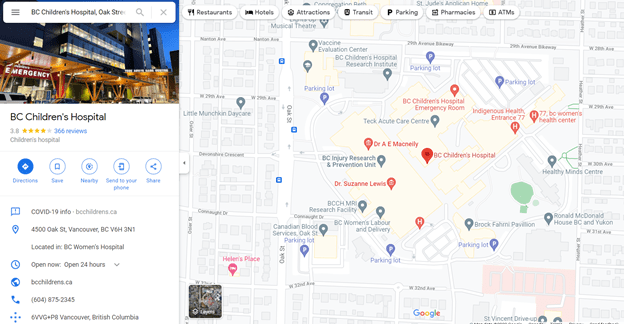
Or a specific address within a city.
At the left side of the searched address or city, the Google Search information for the searched location will appear. If no city is specified, the search will be of the immediate area/city first.
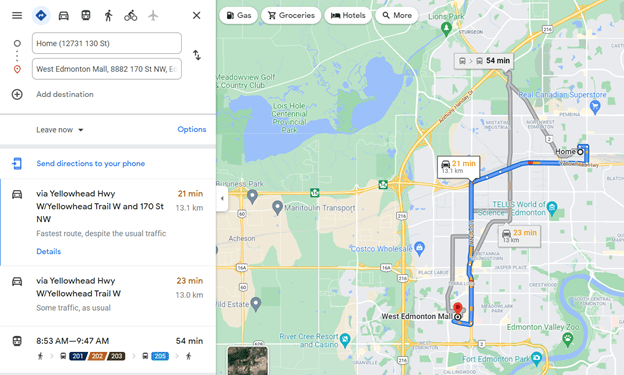
Searching for Directions
The blue right arrow button beside the Search field changes it to search for directions.
It will now show fields to choose a starting point and destination point.
Enter the address you are starting from or click on the map to autofill the starting address. The enter a destination in the destination field.
Hit Enter
Maps will show optional routes to reach the destination including driving and transit routes. The selected route will show on the lap in blue. Other possible routes will be in grey. Each route will include the transportation type and the time it will take to travel.
Click on the route to select it then click on Details.
Details will show the instructions to reach the selected route, and the time it will take to reach the location.
Press the Mobile Phone icon to forward the directions to your cellphone or email them.
Press the icon that looks like a less-than sign to share a link to Facebook or Twitter or to provide a web link.
Press the Printer icon. A choice between printing instructions including the map or just the instructions will be printed. A print window will open.
Like the title says, week one of my new contract is complete.
It went well if I do say so myself.
The project manager I’m working with is a good guy and appreciates my writing skills. He actually teaches in the evenings at SAIT.
Yes, even as a Business Analyst I will find ways to flex my passion.
This time it was writing a mission statement for the project. Don’t promise too much. Be concise. Make it sound good. My project manager said as soon as he read my vision/mission statement, that I was a technical writer.
Check. Though when our manager has a look at it, we’ll see what she thinks.
A little under seven hours and it will be a new year.
Just before the new year I got a contract with Alberta Education for three months. Which is a start, but short contracts are hard to build on. The constant search for work is tiring and it’s not in the field I want. Still I’m glad to have it.
The next step is to find a job in technical writing which is what I love to do. It just doesn’t seem to be an easy field to find work in, in spite of the fact that I have done the work before. I’ve had several interviews and I’m hoping the old adage that it’s easier to find work when you’re working bears fruit.
So this is my resolution for 2022: to wrangle the technical writing position that I am aiming for.
I tend to be the sort that does things to extreme.
When I am focused on work, I can easily keep working long into the evening.
Last week, I had to pull away from looking for work to focus on cleaning the house.
Thankfully not only did we successfully get through that but I secured a contract with Alberta Education as a Business Analyst. This in time that I am not looking for work all through the Christmas holiday.
Not that that means I get to relax. No, it means that I need to prep everything for my return to work in January.
I’m not very good with work/life balance.
My plan is to put up the Christmas Tree, plan my work clothing and go and secure new glasses. Some point in time to upgrade my wardrobe and cook Christmas dinner.
I might get around to actually relaxing around New Years.
















 Tammy J. Morrison - Writer & IT Guru