
| Blog | Technical Writer | Technical Analyst | Business Analyst | Admin Support | Projects | Sample Documents | Home |
Another sample of my writing skills.
Read it here or download the document from my sample documents page.
Using Google Maps
To anyone familiar with Google Suite, they will be familiar with the simplicity of using the system. Google Maps builds on to this, to allow users to easily find locations in their city or locations worldwide. As long as the user has a personal computer and is familiar with using it, they can use Google Maps.
Opening Google Maps
On a browser, go to http://maps.google.com. There may be some variations of how it will appear, depending on the browser application used. For this instruction Google Chrome is being used.
It will display a map near your current location. If there is a Home address set near the current location, it will be displayed on the map as a Pinned Location.
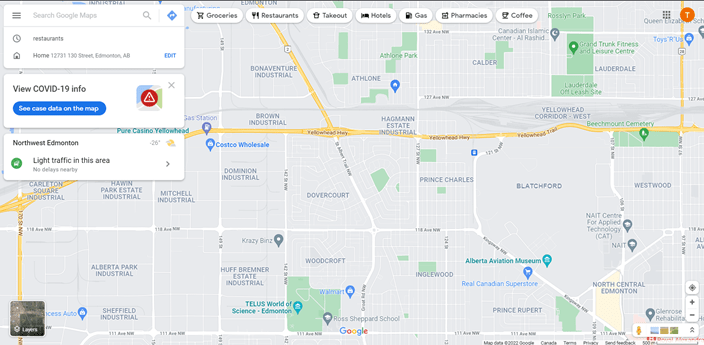
Mousing over the Home pin will display a photo of the location.
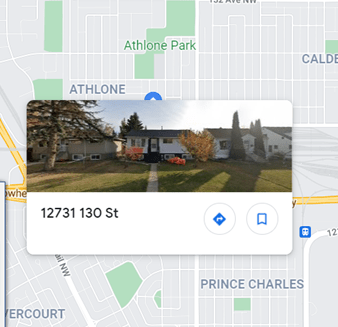
Mousing over various pinned locations will have information from the location popup. This will include pictures, business names, addresses and hours.
Types of pins include Shopping, Groceries, Museums, Schools, Gaming, Golfing and others as well as generic pins.
Google Map Features

Menu
If you click the Menu icon (three straight lines), the menu will open at the side.
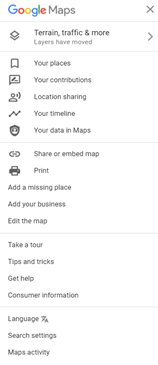
Terrain, traffic & more will close the menu and show the map.
Your Places will show a menu of locations that have been Saved.
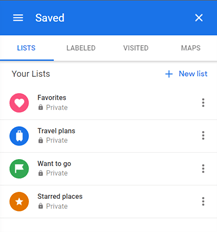
Lists will show locations you have added as Favorites, Travel Plans, Want to Go, or Starred Places locations.
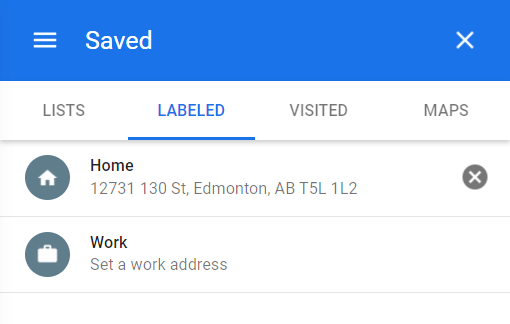
Labeled will show addresses that has been set as Home, Work or others.
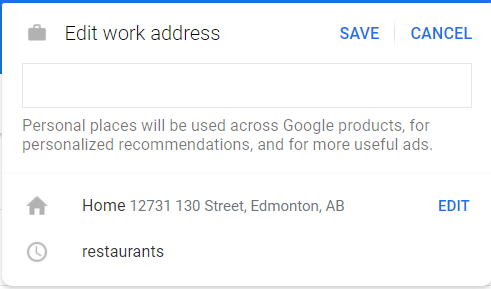
To set a Labeled address, click on the label an Edit window will open. Enter the address and click save to add it as a Labeled address.
To change a Labeled address , click on Edit. The Edit window will open.
Visited will show addresses that you have visited recently.
Maps will show a list of locations that a map has been generated for. A Map is generated when you use the From and To function of Google Maps, to find Directions.
Your Contributions will display contributions the user has made as feedback on Businesses and Locations through Google.
Location Sharing is used mostly by the Google Maps mobile application and will share your location with friends and family. Clicking Manage Location will allow the user to control if their location is shared or not.
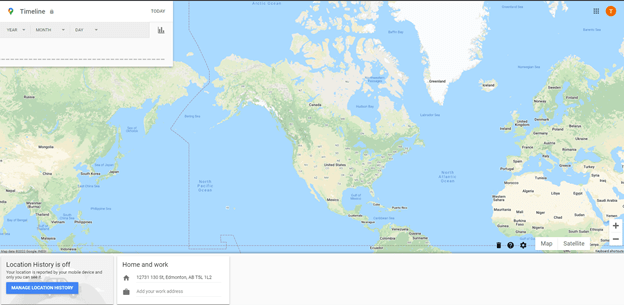
Your Timeline will display locations that have been visited over a specific timeline. Clicking this will open a new browser tab. Location History must be On to track your history. If it is not on, no History will be recorded. The data saved in the users account helps give them a more personalized experience across all Google services.
Your Data on Maps will open a new browser tab that will show items such as the set Home and Work addresses as well as any reviews the user has made for specific businesses. Google wide controls like Location History and Web & App Activity can be toggled On and Off or viewed from this location.
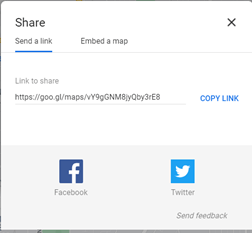
Share or embed map opens a pop up.
Share a link allows you to post an address on Facebook or Twitter.
Embed a map provides HTML code to post a map on a website.
Print switches the browser tab to allow it to print easily. It includes a place to add notes. Click the Print button will open a Print window.
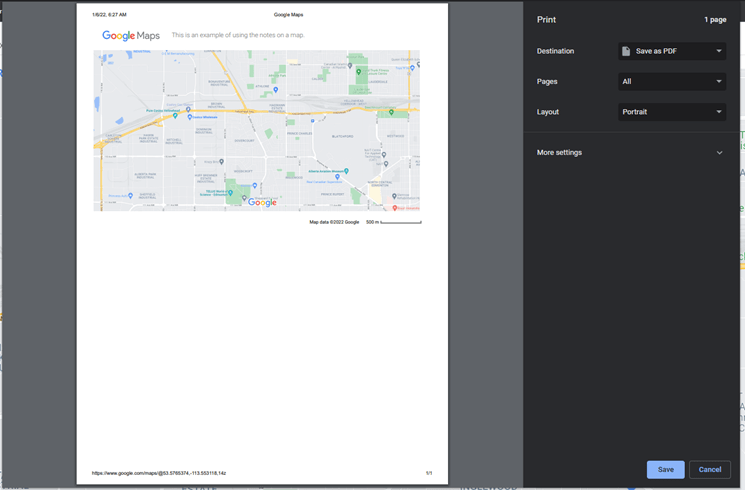
Add a missing place allows users to submit new locations to Google.
Add your business allows users to create a Business Profile on Google.
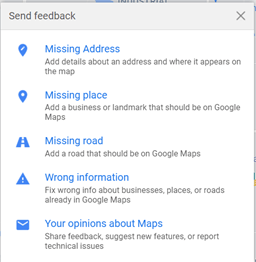
Edit the map opens a pop up to allow a user to report a Missing Address, Missing Place, Missing Road, Wrong Information or Your Opinions about Maps to Google.
Take a Tour starts the Google Maps tour to explain how maps work.
Tricks and Tips opens a Help Menu.
Get help opens a Help Search.
Consumer Information opens a Google Maps Consumer Information pop up.
Language opens a Select Language pop up.
Search Settings opens a window to allow a user to adjust their Google Search Settings.
Maps Activity opens a window to allow a user to adjust their Maps Activity in Google My Activity.
Categories
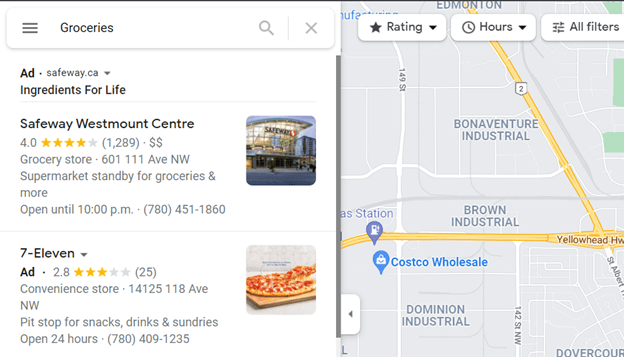
A set of Category buttons is at the center of the screen.
Categories include Groceries, Restaurants, Takeout, Hotels, Gas, Pharmacies and Coffee.

Clicking each Category will open a list of businesses or places in that category for the location you are in.
The list can be filtered by Rating, Hours and other filters by clicking the buttons next to the list of businesses.
COVID-19 Information
A new function on Google Maps is displaying case data on the map.

Click on the See case data button will open a new menu on the map.
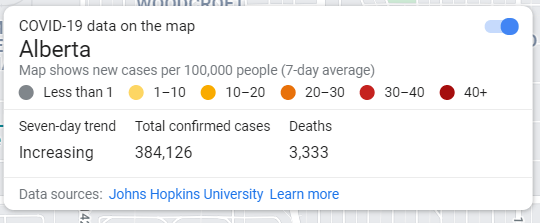
This can be toggled off with the blue button at the top of the COVID menu.
Layers Button
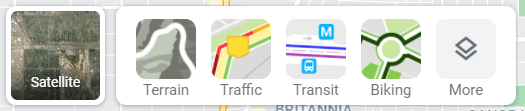
Mouse over the Layers button at the bottom left of the screen.
Satellite, Terrain, Traffic, Transit, Biking and More will popup.
Clicking each of these will change the appearance of the map.
Satellite changes the appears to a satellite image of the map. The button will then be changed to Map. Use this button to toggle between Satellite and Map.
Terrain adds terrain shading to indicate topography and elevation.
Traffic adds colored live traffic.

Transit highlights transit stations on the map.
Biking highlights biking paths on the map.

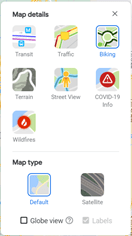
More expands the map features and allows a user to toggle between features.
Additional Functions

This button centers your map based on your current location.

The plus / minus buttons changes the scale of the map.
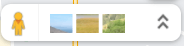
The yellow man button shows which streets / areas have satellite mapping.
The picture squares open a Explore photo menu.
The two upper arrows indicates that the Explore menu is closed. When the Explore menu is open, the direction of the arrows change to downward.
Search with Google Maps
At the top left of the browser menu, there is a search window.
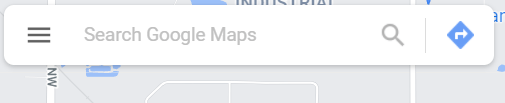
This functions in the typical way that most search engines do, but instead of websites being found, Google Maps will locate businesses, locations in the user’s cities or other cities. Either a type of business or location can be entered, such as a groceries store or bank, or the specific name of the business.
To find a different city, the user enters the city name. IE: Vancouver.
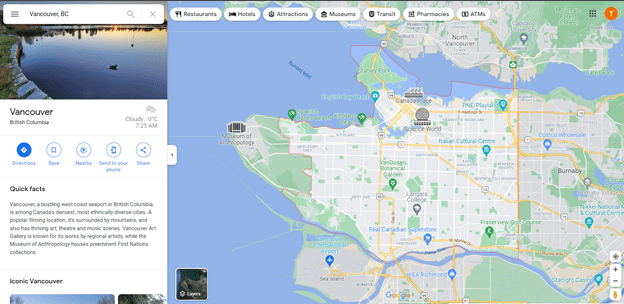
Or a specific address within a city.
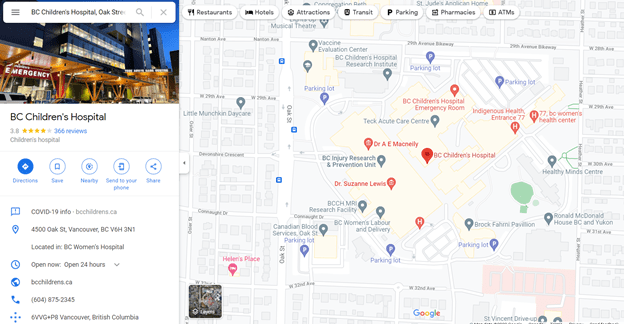
At the left side of the searched address or city, the Google Search information for the searched location will appear. If no city is specified, the search will be of the immediate area/city first.
Searching for Directions
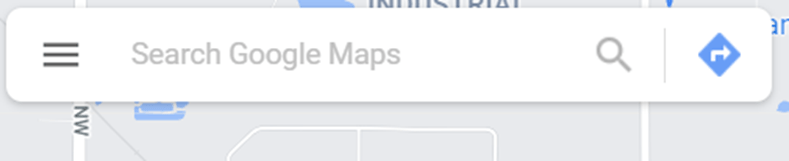
The blue right arrow button beside the Search field changes it to search for directions.
It will now show fields to choose a starting point and destination point.
Enter the address you are starting from or click on the map to autofill the starting address. The enter a destination in the destination field.
Hit Enter
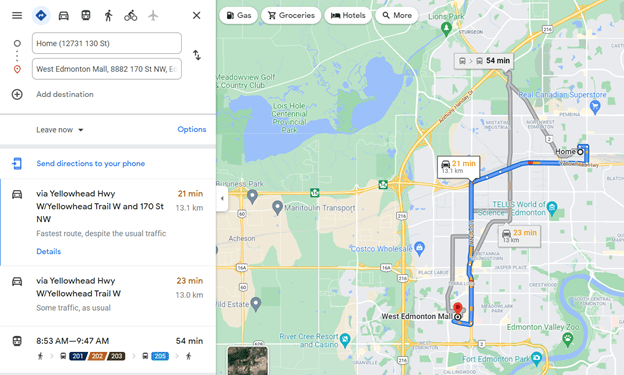
Maps will show optional routes to reach the destination including driving and transit routes. The selected route will show on the lap in blue. Other possible routes will be in grey. Each route will include the transportation type and the time it will take to travel.
Click on the route to select it then click on Details.
Details will show the instructions to reach the selected route, and the time it will take to reach the location.
Press the Mobile Phone icon to forward the directions to your cellphone or email them.
Press the icon that looks like a less-than sign to share a link to Facebook or Twitter or to provide a web link.
Press the Printer icon. A choice between printing instructions including the map or just the instructions will be printed. A print window will open.
 Tammy J. Morrison - Writer & IT Guru